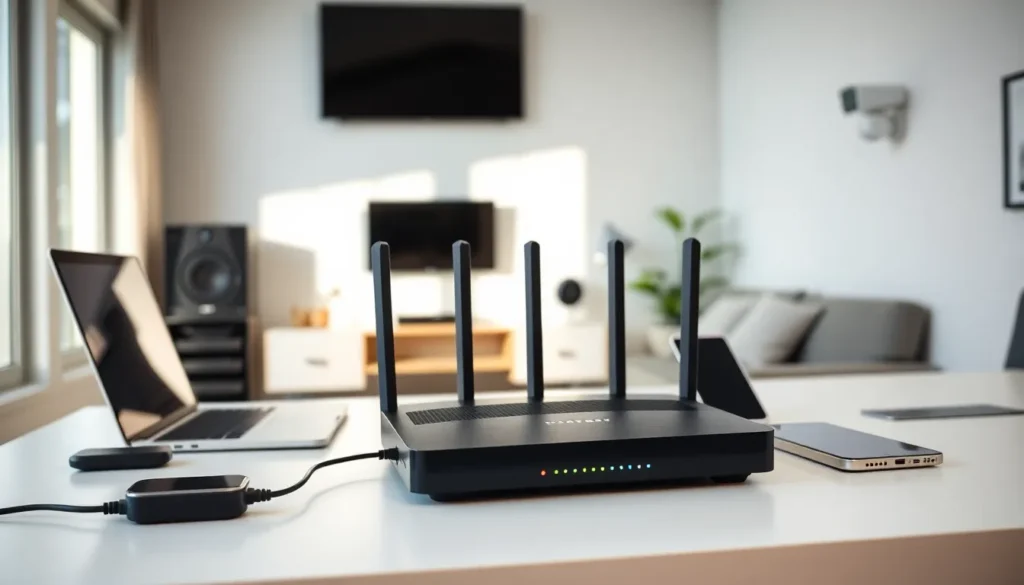
Home networking connects devices within a household so they can share data, internet access, and resources. Whether someone streams movies, works remotely, or controls smart home gadgets, a home network makes it all possible. The average American household now has over 20 connected devices, and that number keeps climbing. Understanding what home networking is and how it works has become essential knowledge for modern living. This guide breaks down the basics, explains the key components, and offers practical advice for building and troubleshooting a reliable home network.
Table of Contents
ToggleKey Takeaways
- Home networking connects all household devices—computers, phones, smart TVs, and more—so they can share internet access, files, and resources efficiently.
- A basic home network requires a modem to receive internet signals and a router to distribute the connection to all your devices.
- Wired ethernet connections offer faster speeds and greater stability, while Wi-Fi provides flexibility and convenience for mobile devices.
- Setting up a simple home network takes about 30 minutes: connect the modem, link it to the router, configure your settings, and connect your devices.
- Common home networking problems like slow speeds and dead zones can often be fixed by repositioning your router, upgrading hardware, or adding a mesh Wi-Fi system.
- Protect your home network by changing default router credentials, using strong passwords, enabling WPA3 encryption, and keeping firmware updated.
Understanding the Basics of Home Networking
A home network is a group of devices connected together within a residence. These devices communicate with each other and access the internet through a central connection point. Home networking allows computers, phones, tablets, smart TVs, printers, and other gadgets to share files, stream content, and use a single internet connection.
The concept is straightforward. An internet service provider (ISP) delivers an internet signal to the home. A modem converts that signal into data the network can use. A router then distributes the connection to all devices, either through cables or wireless signals.
Home networks serve several purposes:
- Internet sharing: Multiple devices access the web simultaneously
- File sharing: Family members transfer photos, documents, and media between devices
- Printer sharing: One printer serves the entire household
- Media streaming: Content flows from storage devices to TVs and speakers
- Smart home control: Thermostats, cameras, and lights connect and communicate
Without a home network, each device would need its own internet connection. That’s expensive and impractical. Home networking solves this problem efficiently.
Key Components of a Home Network
Every home network requires certain hardware to function. Here are the essential components:
Modem
The modem connects the home to the ISP. It translates the incoming signal (cable, DSL, or fiber) into digital data. Most ISPs provide a modem, though users can purchase their own for better performance or to avoid rental fees.
Router
The router directs traffic between devices and the internet. It assigns IP addresses to each device and manages data flow. Modern routers include built-in security features like firewalls and encryption. Many users opt for combination modem-router units to save space.
Ethernet Cables
These cables physically connect devices to the router. Cat5e and Cat6 cables are common choices. Ethernet connections offer faster speeds and lower latency than wireless alternatives.
Network Switch
A switch expands the number of wired connections available. If a router has four ethernet ports but a household needs eight, a switch fills that gap. It’s useful for home offices or gaming setups.
Wireless Access Points
These devices extend Wi-Fi coverage. Large homes or those with thick walls may experience dead zones. An access point or mesh system eliminates those gaps and ensures consistent coverage throughout.
Network-Attached Storage (NAS)
A NAS device stores files accessible to all network users. Families use it for photo backups, media libraries, and document storage. It acts like a personal cloud within the home network.
Wired vs. Wireless Home Networks
Home networking offers two main connection types: wired and wireless. Each has distinct advantages.
Wired networks use ethernet cables to connect devices directly to the router. Benefits include:
- Faster and more stable speeds
- Lower latency (important for gaming and video calls)
- Greater security since physical access is required
- No interference from walls or other electronics
The downside? Cables create clutter and limit mobility. Running ethernet through walls requires effort or professional installation.
Wireless networks (Wi-Fi) transmit data through radio signals. Advantages include:
- Freedom to move devices anywhere within range
- Easy setup without drilling or cable management
- Support for mobile devices that lack ethernet ports
- Cleaner aesthetics with no visible wires
Wi-Fi does have weaknesses. Walls, floors, and distance reduce signal strength. Other electronics and neighboring networks cause interference. Security risks increase since signals broadcast openly.
Many households use a hybrid approach. Desktop computers, gaming consoles, and smart TVs connect via ethernet for speed. Laptops, phones, and tablets use Wi-Fi for convenience. This combination maximizes the benefits of home networking while minimizing drawbacks.
How to Set Up a Simple Home Network
Setting up a basic home network takes about 30 minutes. Here’s a step-by-step approach:
Step 1: Connect the modem
Plug the modem into the ISP’s wall outlet (coaxial for cable, phone jack for DSL, or optical port for fiber). Connect the power cable and wait for the lights to stabilize.
Step 2: Connect the router
Use an ethernet cable to link the modem to the router’s WAN port. Power on the router and allow it to boot completely.
Step 3: Configure the router
Access the router’s admin panel through a web browser. The address is usually printed on the device (often 192.168.1.1 or 192.168.0.1). Set up a unique network name (SSID) and a strong password. Enable WPA3 encryption if available: WPA2 works as a fallback.
Step 4: Connect devices
Wired devices plug into the router’s LAN ports. Wireless devices search for the network name and enter the password.
Step 5: Test the connection
Open a browser on each device and visit a website. If pages load, the home network is operational. Run a speed test to confirm expected performance.
That’s it. A functional home network is now running.
Common Home Networking Challenges and Solutions
Even well-designed home networks encounter problems. Here are frequent issues and how to fix them:
Slow Internet Speeds
Causes include too many connected devices, outdated hardware, or ISP throttling. Solutions:
- Restart the modem and router
- Upgrade to a newer router with better throughput
- Connect bandwidth-heavy devices via ethernet
- Check if the ISP plan matches actual needs
Wi-Fi Dead Zones
Some areas receive weak or no signal. Thick walls, large distances, and interference contribute to this.
- Reposition the router to a central location
- Add a mesh Wi-Fi system or range extender
- Switch to a less congested Wi-Fi channel
Devices Won’t Connect
This happens when the network reaches its device limit or passwords don’t match.
- Verify the correct password is entered
- Restart both the device and router
- Check if MAC address filtering is blocking the device
Security Concerns
Home networks face risks from hackers and malware.
- Change default router credentials immediately
- Use strong, unique passwords
- Keep router firmware updated
- Create a guest network for visitors
Troubleshooting home networking issues usually starts with a simple restart. If problems persist, check physical connections before investigating software settings.