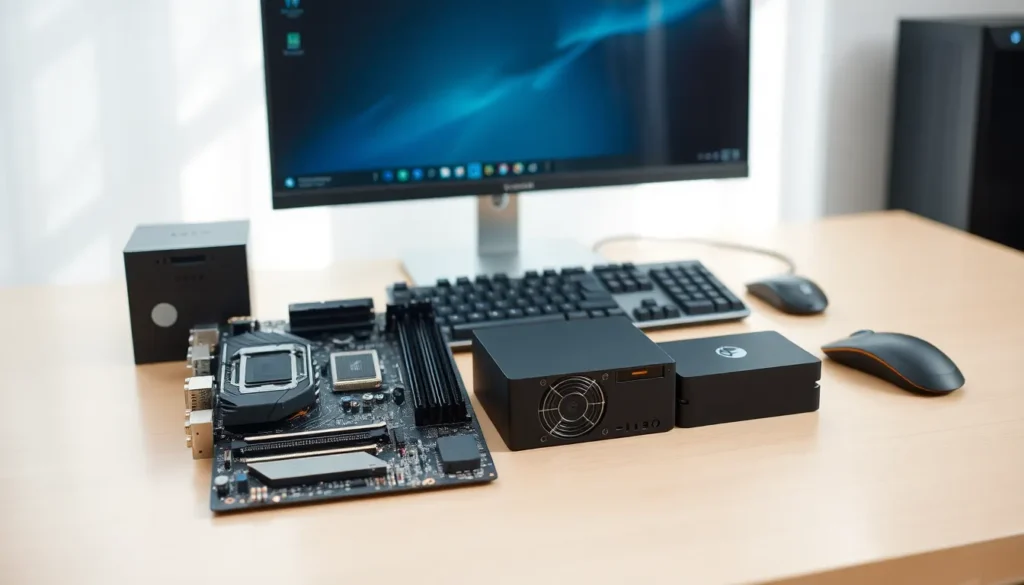
Hardware forms the physical foundation of every computing device. From the processor inside a laptop to the keyboard on a desk, hardware includes all tangible components that make technology work. Understanding hardware helps users make smarter purchasing decisions, troubleshoot problems, and extend the life of their devices. This guide covers what hardware is, the different types available, how to select the right components, and how to keep them running smoothly.
Table of Contents
ToggleKey Takeaways
- Hardware includes all physical components of a computer, from internal parts like CPUs and RAM to external devices like keyboards and monitors.
- Understanding your specific needs—gaming, office work, or video editing—helps you choose the right hardware for optimal performance.
- Always check compatibility between components before purchasing, as CPUs, motherboards, RAM, and power supplies must work together.
- Regular maintenance like dust removal, temperature monitoring, and driver updates extends hardware lifespan and prevents costly repairs.
- Protect your hardware investment by using surge protectors and backing up data regularly to avoid unexpected failures.
What Is Hardware?
Hardware refers to the physical parts of a computer or electronic device. These are the components users can touch, hold, and physically install. Hardware works alongside software, the programs and operating systems that tell hardware what to do.
Every computer system relies on hardware to function. The motherboard connects all components together. The CPU (central processing unit) processes instructions. RAM (random access memory) stores temporary data for quick access. Storage drives hold files, applications, and the operating system.
Without hardware, software has nothing to run on. Think of hardware as the body and software as the brain. Both need each other to create a functional system.
Hardware also includes devices outside the main computer case. Monitors display visual output. Keyboards and mice provide input. Printers produce physical copies of digital documents. All these pieces fall under the hardware category because they’re physical objects.
Types of Computer Hardware
Computer hardware splits into two main categories: internal components and external devices. Each plays a specific role in how a system operates.
Internal Components
Internal hardware sits inside the computer case. These parts handle core computing tasks.
CPU (Central Processing Unit): The CPU acts as the brain of the computer. It executes instructions and processes data. Faster CPUs handle more tasks simultaneously. Intel and AMD manufacture most consumer CPUs.
Motherboard: This large circuit board connects all internal hardware. It provides pathways for data to travel between the CPU, RAM, storage, and other components. Motherboard quality affects system stability and upgrade options.
RAM (Random Access Memory): RAM provides temporary storage for active programs and data. More RAM allows users to run multiple applications without slowdowns. Most modern systems need at least 8GB of RAM for basic tasks.
Storage Drives: Hard disk drives (HDDs) and solid-state drives (SSDs) store data permanently. SSDs offer faster read and write speeds than traditional HDDs. Many users choose SSDs for their operating system and HDDs for bulk file storage.
Graphics Card (GPU): The GPU renders images, videos, and animations. Gamers and video editors need powerful graphics cards. Integrated graphics built into CPUs work fine for everyday tasks.
Power Supply Unit (PSU): The PSU converts electricity from wall outlets into usable power for computer components. A quality PSU protects hardware from power surges and ensures stable operation.
External Devices and Peripherals
External hardware connects to the computer from outside the case. These devices expand functionality and improve user experience.
Monitors: Displays show visual output from the computer. Screen size, resolution, and refresh rate vary by model. Higher resolutions produce sharper images.
Keyboards and Mice: These input devices let users interact with their computers. Mechanical keyboards offer tactile feedback. Gaming mice include extra buttons and adjustable sensitivity.
Printers and Scanners: Printers create physical copies of digital files. Scanners convert physical documents into digital formats. Many devices combine both functions.
External Storage: USB flash drives and external hard drives provide portable storage. They’re useful for backups and transferring files between computers.
Audio Equipment: Speakers, headphones, and microphones handle sound input and output. Quality varies widely based on price and intended use.
How to Choose the Right Hardware for Your Needs
Selecting hardware requires matching components to specific use cases. A graphic designer needs different hardware than a casual web browser.
Define Your Purpose: Start by listing what tasks the computer will handle. Gaming demands a powerful GPU and fast CPU. Office work needs reliable storage and adequate RAM. Video editing requires high-end hardware across the board.
Set a Budget: Hardware prices range from budget-friendly to premium. Decide how much to spend before shopping. Sometimes mid-range hardware delivers the best value, it offers strong performance without premium pricing.
Check Compatibility: Not all hardware works together. CPUs require compatible motherboards. RAM must match motherboard specifications. Graphics cards need adequate power supply wattage. Research compatibility before purchasing.
Consider Future Upgrades: Buy hardware that allows future improvements. Choose a motherboard with extra RAM slots. Pick a case with room for additional storage drives. Planning ahead saves money over time.
Read Reviews: User reviews and professional benchmarks reveal real-world hardware performance. Don’t rely solely on manufacturer specifications. Independent testing shows how hardware actually performs.
Balance Performance and Reliability: The fastest hardware isn’t always the best choice. Consider warranty length, brand reputation, and build quality. Reliable hardware lasts longer and causes fewer headaches.
Essential Hardware Maintenance Tips
Proper maintenance extends hardware lifespan and prevents costly repairs. A few simple habits keep components running efficiently.
Clean Regularly: Dust accumulates inside computer cases and clogs cooling fans. Use compressed air to remove dust every few months. Clean keyboards and mice with microfiber cloths. Dusty hardware runs hotter and fails sooner.
Monitor Temperatures: Overheating damages hardware permanently. Install temperature monitoring software to track CPU and GPU temperatures. If temperatures run high, improve airflow or upgrade cooling solutions.
Update Drivers: Hardware drivers are software programs that help operating systems communicate with hardware. Outdated drivers cause performance issues and compatibility problems. Check for driver updates regularly.
Handle Components Carefully: Static electricity damages sensitive hardware. Touch a grounded metal object before handling internal components. Hold graphics cards and RAM by their edges, not the circuits.
Back Up Data: Storage drives eventually fail. Regular backups protect important files. Use external drives or cloud storage to create copies of critical data.
Surge Protection: Power surges destroy hardware instantly. Connect computers to surge protectors or uninterruptible power supplies (UPS). These devices absorb voltage spikes before they reach sensitive components.
Replace Aging Parts: Hardware wears out over time. Fans lose efficiency. Thermal paste dries out. Storage drives develop errors. Replace aging hardware before complete failure occurs.