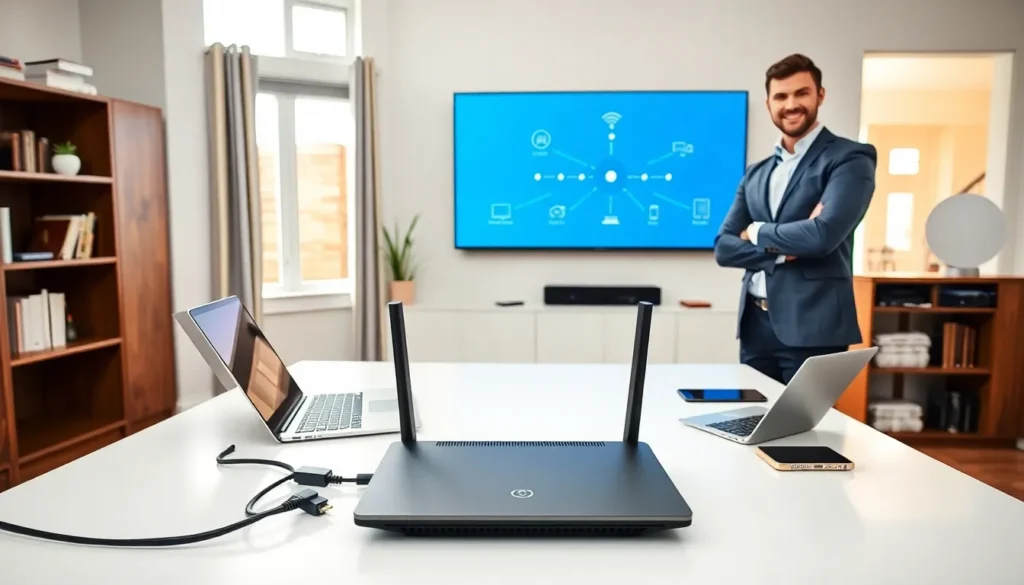
Learning how to home networking works doesn’t require a computer science degree. A well-designed home network connects all your devices to the internet and to each other. It lets you stream movies in the living room, work from a home office, and control smart devices throughout your house.
Today’s households average more than 20 connected devices. That number keeps growing. Without proper home networking setup, you’ll face slow speeds, dead zones, and constant frustration. This guide covers everything beginners need to know, from basic concepts to equipment selection, step-by-step setup, security practices, and troubleshooting tips. By the end, you’ll have the knowledge to build a reliable home network that actually works.
Table of Contents
ToggleKey Takeaways
- A solid home networking setup starts with positioning your router centrally and away from interference sources like microwaves and cordless phones.
- Choose a Wi-Fi 6-compatible router and consider a mesh system if you have a large home or thick walls causing dead zones.
- Secure your home network by changing default credentials, enabling WPA3 (or WPA2) encryption, and setting up a separate guest network.
- Use Ethernet connections for devices like gaming consoles and streaming boxes to achieve faster, more stable speeds.
- Regularly update your router firmware to fix bugs, patch security vulnerabilities, and keep your network running smoothly.
- Troubleshoot slow speeds or connection drops by restarting your modem/router, switching to the 5 GHz band, or checking for channel interference.
Understanding Home Network Basics
A home network is a group of devices that share a connection to the internet and communicate with each other. Think of it as a digital highway system inside your house. Data travels between your router, computers, phones, tablets, smart TVs, and IoT devices.
Two main types of connections exist: wired and wireless. Wired connections use Ethernet cables to link devices directly to your router. They offer faster speeds and more stable connections. Wireless connections use Wi-Fi signals to connect devices without cables. They provide convenience and flexibility.
Your Internet Service Provider (ISP) delivers internet to your home through a modem. The modem converts that signal into something your devices can use. A router then distributes the connection to multiple devices. Many ISPs now provide combination modem-router units.
Home networking also involves IP addresses. Every device on your network gets a unique IP address. This address identifies the device so data reaches the right destination. Your router assigns these addresses automatically through a system called DHCP.
Bandwidth determines how much data your network can handle at once. Higher bandwidth means more devices can stream, download, and browse simultaneously without slowdowns. Most home internet plans offer between 100 Mbps and 1 Gbps.
Essential Equipment You Need
Building a solid home network starts with the right equipment. Here’s what you’ll need:
Modem: This device connects your home to your ISP. Some people rent modems from their provider. Others buy their own to save on monthly fees. Check your ISP’s compatibility list before purchasing.
Router: The router broadcasts your Wi-Fi signal and manages traffic between devices. Look for a router that supports Wi-Fi 6 (802.11ax) for better performance with multiple devices. Dual-band routers operate on both 2.4 GHz and 5 GHz frequencies. Tri-band routers add a second 5 GHz band for even more capacity.
Mesh Wi-Fi System: Large homes or those with thick walls benefit from mesh systems. These use multiple units placed throughout the house to create seamless coverage. Popular options include systems from Google, Amazon, and TP-Link.
Ethernet Cables: Cat6 or Cat6a cables work well for most home networking needs. Keep a few different lengths on hand for connecting computers, gaming consoles, and streaming devices directly to your router.
Network Switch: If you need more wired connections than your router provides, a network switch expands your options. An 8-port switch costs around $20-30 and adds flexibility.
Powerline Adapters: These devices use your home’s electrical wiring to extend network connections. They’re useful when running Ethernet cables isn’t practical.
Setting Up Your Home Network Step by Step
Follow these steps to set up your home network properly:
Step 1: Position Your Router
Place your router in a central location. Avoid closets, basements, and areas surrounded by thick walls. Elevate it on a shelf or mount it on a wall. Keep it away from microwaves, cordless phones, and baby monitors, these create interference.
Step 2: Connect Your Modem and Router
Plug your modem into the wall outlet (coax or phone line, depending on your service). Connect the modem to your router’s WAN port using an Ethernet cable. Power on both devices and wait 2-3 minutes for them to boot up.
Step 3: Access Router Settings
Open a web browser and type your router’s IP address (usually 192.168.0.1 or 192.168.1.1). Log in using the default credentials printed on your router. Change these immediately.
Step 4: Configure Your Wi-Fi
Create a unique network name (SSID) that doesn’t reveal personal information. Set a strong password with at least 12 characters, mixing letters, numbers, and symbols. Enable WPA3 security if available, or WPA2 at minimum.
Step 5: Connect Your Devices
On each device, open Wi-Fi settings and select your network. Enter your password. For devices that support Ethernet, run cables to your router or switch for the best performance.
Step 6: Update Firmware
Check your router manufacturer’s website for firmware updates. These updates fix bugs and patch security vulnerabilities. Many modern routers offer automatic updates.
Securing Your Home Network
Home networking security protects your personal data and prevents unauthorized access. Hackers target home networks to steal information, install malware, or use your bandwidth for illegal activities.
Start by changing default login credentials. Factory usernames and passwords are publicly known. Create unique, strong passwords for both your router admin panel and Wi-Fi network.
Enable network encryption. WPA3 offers the strongest protection currently available. If your devices don’t support WPA3, use WPA2. Never use WEP, it’s outdated and easily cracked.
Create a guest network for visitors. This keeps your main network separate and protects your personal devices. Most routers let you set up guest networks through the admin panel.
Disable WPS (Wi-Fi Protected Setup). While convenient, WPS has known security flaws that hackers exploit. Turn it off in your router settings.
Consider these additional security measures:
- Enable your router’s built-in firewall
- Disable remote management unless you specifically need it
- Hide your SSID to make your network less visible
- Regularly check which devices are connected to your network
- Set up MAC address filtering for extra control
Keep all network devices updated. Manufacturers release patches for security vulnerabilities. Outdated firmware leaves your home network exposed.
Troubleshooting Common Network Issues
Even well-configured home networks run into problems. Here’s how to fix the most common issues:
Slow Internet Speeds
First, run a speed test at speedtest.net. Compare results to what you’re paying for. If speeds are low, restart your modem and router. Check for bandwidth-heavy applications running in the background. Move closer to your router or connect via Ethernet.
Wi-Fi Dead Zones
Some areas of your home may receive weak or no signal. Reposition your router to a more central location. Add a mesh Wi-Fi unit or range extender to problem areas. Powerline adapters can also help reach distant rooms.
Intermittent Connection Drops
Frequent disconnections often indicate interference or outdated equipment. Switch to the 5 GHz band if you’re on 2.4 GHz. Update your router firmware. Check if neighboring Wi-Fi networks are using the same channel and switch to a less crowded one.
Devices Won’t Connect
Forget the network on the device and reconnect. Restart the device. Make sure you’re entering the correct password. Check if your router has reached its device limit.
One Device Has Problems While Others Work Fine
The issue likely sits with that specific device. Update its network drivers or operating system. Reset network settings on the device. Try connecting it to a different network to confirm.
When all else fails, perform a factory reset on your router. This erases all settings, so you’ll need to reconfigure everything. Keep your network name and password documented somewhere safe.