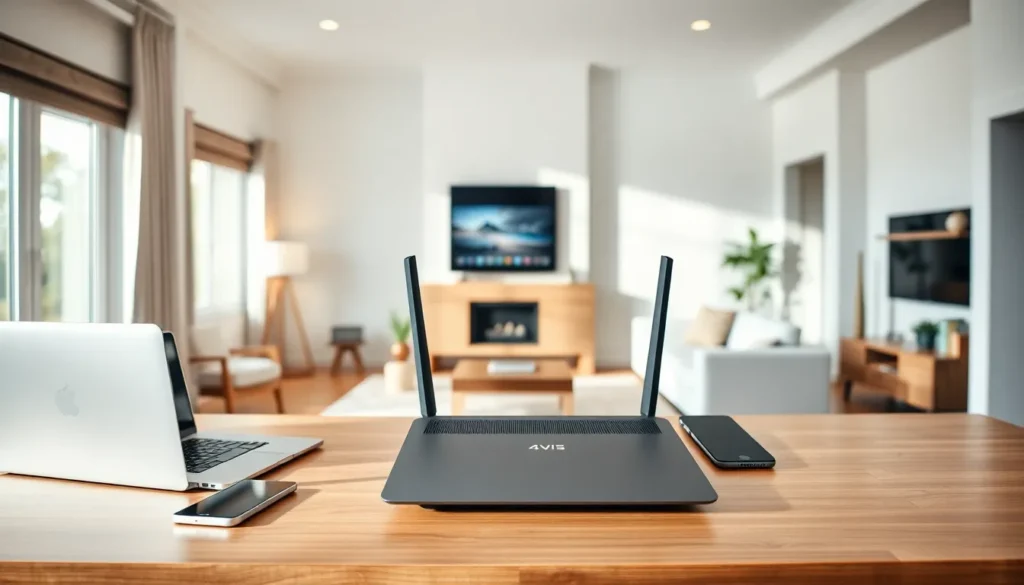
Home networking forms the backbone of every modern household. Smart TVs, gaming consoles, laptops, and IoT devices all depend on a stable network connection. A well-designed home network delivers fast speeds, reliable connections, and solid security for every device in the house.
This guide covers everything needed to build and maintain an effective home network. Readers will learn about essential equipment, setup procedures, performance optimization, and security best practices. Whether starting from scratch or upgrading an existing setup, these insights will help create a connected home that works smoothly.
Table of Contents
ToggleKey Takeaways
- A well-designed home network requires essential equipment including a modem, router, Ethernet cables, and potentially a mesh Wi-Fi system for larger homes.
- Position your router in a central, elevated location away from walls and appliances to maximize Wi-Fi coverage throughout your home.
- Secure your home network by changing default credentials, enabling WPA3 encryption, and creating a separate guest network for visitors and IoT devices.
- Use Cat6 or Cat6a Ethernet cables for wired connections to stationary devices like gaming consoles and smart TVs for optimal speed and stability.
- Regularly update router firmware and monitor connected devices to protect your home network from security vulnerabilities and unauthorized access.
- Enable Quality of Service (QoS) settings to prioritize video calls and gaming traffic over background downloads for a smoother experience.
Understanding the Basics of Home Networks
A home network connects all devices in a household so they can communicate and share resources. This includes internet access, file sharing between computers, and streaming content to smart devices.
Two main types of connections exist in home networking: wired and wireless. Wired connections use Ethernet cables to link devices directly to a router. They offer faster speeds and more stable connections. Wireless connections use Wi-Fi signals, providing convenience and mobility throughout the home.
The router serves as the central hub of any home network. It receives data from the internet via a modem and distributes it to connected devices. Most modern routers combine both wired and wireless capabilities in a single unit.
IP addresses identify each device on the network. The router assigns these addresses automatically through a system called DHCP. This allows devices to find and communicate with each other without manual configuration.
Bandwidth determines how much data can flow through the network at once. Think of it like a highway, more lanes mean more traffic can pass simultaneously. A home with multiple streaming devices and gamers needs higher bandwidth than a household with basic browsing needs.
Essential Equipment for a Reliable Home Network
Building a solid home network starts with choosing the right equipment. Each component plays a specific role in delivering fast, stable connectivity.
Modem
The modem connects the home to the internet service provider (ISP). It translates signals from the ISP into data that devices can use. Some ISPs provide modems, but purchasing a compatible unit often delivers better performance and eliminates rental fees.
Router
The router distributes the internet connection to all devices. Modern routers support Wi-Fi 6 (802.11ax), which handles multiple devices more efficiently than older standards. Look for dual-band or tri-band routers that operate on both 2.4 GHz and 5 GHz frequencies.
Ethernet Cables
Cat6 or Cat6a cables provide the fastest wired connections for home networking. They support speeds up to 10 Gbps over short distances. Use these for stationary devices like desktop computers, gaming consoles, and smart TVs.
Network Switch
A switch expands the number of available wired ports. If the router has only four Ethernet ports but the home needs eight, a switch solves that problem. They’re affordable and easy to add to any setup.
Mesh Wi-Fi Systems
Larger homes benefit from mesh systems. These use multiple access points to blanket the entire home in consistent Wi-Fi coverage. They eliminate dead zones and provide seamless roaming as users move between rooms.
Setting Up Your Home Network Step by Step
Setting up a home network takes about 30 minutes with the right approach. Follow these steps for a smooth installation.
Step 1: Position the modem. Connect it to the ISP’s line (cable, fiber, or DSL). Power it on and wait for the connection lights to stabilize.
Step 2: Connect the router. Use an Ethernet cable to link the modem to the router’s WAN port. Power on the router and allow it to boot completely.
Step 3: Access the router settings. Open a web browser and enter the router’s IP address (commonly 192.168.1.1 or 192.168.0.1). Log in using the default credentials printed on the router.
Step 4: Configure the network name and password. Create a unique SSID (network name) and a strong password with at least 12 characters. Use WPA3 encryption if available, or WPA2 as a minimum.
Step 5: Update the firmware. Check for router firmware updates in the settings menu. Updates fix bugs and patch security vulnerabilities.
Step 6: Connect devices. Link wired devices via Ethernet cables. For wireless devices, select the network name and enter the password.
Step 7: Test the connection. Run a speed test on several devices to confirm the home network performs as expected.
Optimizing Wi-Fi Coverage and Performance
Poor Wi-Fi performance frustrates everyone. These strategies maximize coverage and speed throughout the home network.
Router Placement
Position the router in a central location, elevated off the floor. Avoid placing it near thick walls, metal objects, or appliances like microwaves and cordless phones. These interfere with wireless signals.
Channel Selection
Wi-Fi routers broadcast on specific channels. Neighbors’ networks can cause interference if they use the same channel. Access the router settings and switch to a less congested channel, or enable automatic channel selection.
Band Steering
The 5 GHz band offers faster speeds but shorter range. The 2.4 GHz band travels farther but moves data slower. Enable band steering so devices automatically connect to the optimal frequency for their location.
Quality of Service (QoS)
QoS settings prioritize traffic for specific applications or devices. Enable this feature to give video calls and gaming priority over background downloads. This prevents lag during important activities.
Add Access Points or Mesh Nodes
If dead zones persist, add Wi-Fi extenders or mesh nodes. Mesh systems work best for whole-home networking coverage since they maintain a single network name and provide seamless handoffs between nodes.
Reduce Interference
Move competing wireless devices away from the router. Baby monitors, Bluetooth speakers, and wireless cameras can all disrupt Wi-Fi signals.
Securing Your Home Network From Threats
An unsecured home network invites hackers and unauthorized users. These measures protect connected devices and personal data.
Change Default Credentials
Routers ship with generic usernames and passwords like “admin/admin.” Change these immediately. Hackers know default credentials and exploit them first.
Enable Strong Encryption
Use WPA3 encryption for home networking security. If devices don’t support WPA3, WPA2-AES provides adequate protection. Never use WEP, it’s outdated and easily cracked.
Create a Guest Network
Set up a separate guest network for visitors and IoT devices. This isolates smart home gadgets from computers containing sensitive files. If a smart device gets compromised, the main network stays protected.
Disable WPS
Wi-Fi Protected Setup (WPS) makes connecting devices easier but creates security holes. Turn it off in router settings and connect devices manually instead.
Keep Firmware Updated
Manufacturers release firmware updates that patch vulnerabilities. Enable automatic updates or check monthly for new versions. An outdated router puts the entire home network at risk.
Monitor Connected Devices
Regularly review the list of connected devices in router settings. Remove any unfamiliar devices immediately. Some routers send alerts when new devices join the network.
Use a Firewall
Most routers include a built-in firewall. Confirm it’s enabled in the security settings. This blocks unauthorized incoming connections and adds another layer of protection.