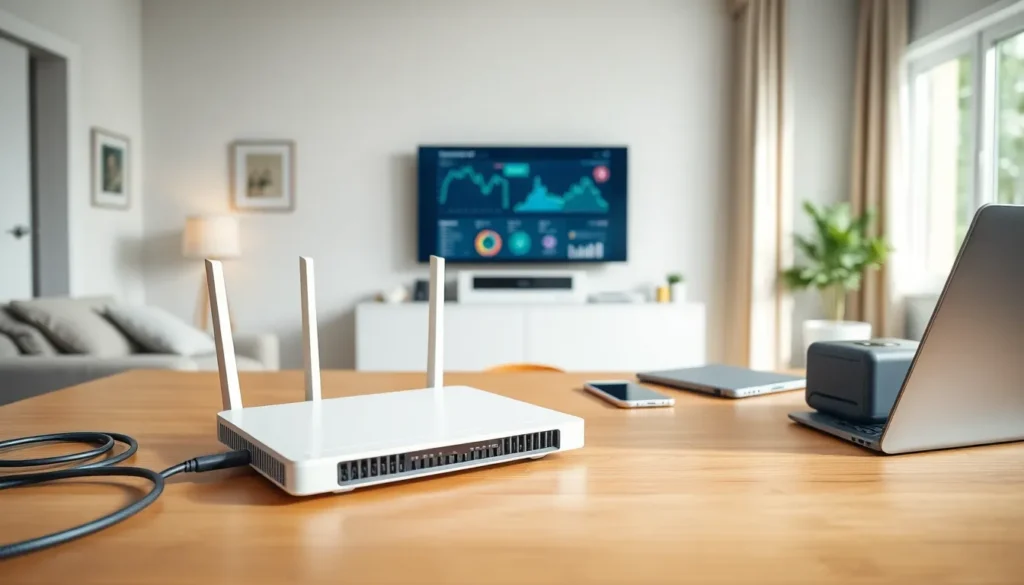
Home networking techniques have become essential knowledge for modern households. The average home now contains over 20 connected devices, from smartphones and laptops to smart TVs and security cameras. A well-designed home network keeps all these devices running smoothly while protecting personal data.
This guide covers everything needed to build, optimize, and secure a home network. Readers will learn about different setup options, wired versus wireless connections, Wi-Fi optimization strategies, and critical security practices. Whether someone is setting up their first network or improving an existing one, these home networking techniques will help create a faster, more reliable connection throughout the home.
Table of Contents
ToggleKey Takeaways
- Effective home networking techniques start with understanding core components: a modem connects to your ISP, while a router distributes the connection to all devices.
- Use wired Ethernet connections for stationary, bandwidth-heavy devices like gaming consoles and smart TVs, and reserve Wi-Fi for mobile devices.
- Place your router in a central, elevated location away from walls and interference sources to maximize Wi-Fi coverage throughout your home.
- Consider a mesh Wi-Fi system for larger homes to eliminate dead zones without sacrificing speed like traditional range extenders.
- Secure your network immediately by changing default passwords, enabling WPA3 encryption, and setting up a separate guest network for visitors and smart devices.
- Regularly update your router’s firmware to maintain optimal performance and protect against security vulnerabilities.
Understanding Your Home Network Setup
Every home network starts with a few key components. The modem connects the home to the internet service provider (ISP). The router distributes that internet connection to all devices in the home. Many ISPs provide a combined modem-router unit, though separate devices often perform better.
A basic home network setup includes:
- Modem: Receives the internet signal from the ISP
- Router: Creates the local network and manages device connections
- Ethernet cables: Connect devices directly to the router
- Wi-Fi: Provides wireless access for mobile devices
Understanding home networking techniques means knowing how data flows through these components. When someone streams a movie, the request travels from their device to the router, through the modem, out to the internet, and back again. Each step affects speed and reliability.
Network speed depends on several factors. The ISP plan sets the maximum download and upload speeds. The router’s capabilities determine how well it handles multiple devices. The connection type, wired or wireless, impacts actual performance. Most homes benefit from a router that supports Wi-Fi 6 or Wi-Fi 6E, which handle more devices with less congestion.
Placement matters too. The router should sit in a central location, elevated off the floor, away from walls and metal objects. This position helps Wi-Fi signals reach all areas of the home more effectively.
Wired vs. Wireless Networking Options
Choosing between wired and wireless connections is a fundamental decision in home networking techniques. Each option has clear advantages and trade-offs.
Wired Connections
Ethernet cables provide the fastest, most stable connections. A Cat6 or Cat6a cable can deliver speeds up to 10 Gbps over short distances. Wired connections don’t suffer from interference, making them ideal for:
- Gaming PCs and consoles
- Home office workstations
- Smart TVs for 4K streaming
- Network-attached storage (NAS) devices
The downside? Running cables through walls takes effort. Not every device has an Ethernet port. Still, for stationary devices that need consistent performance, wired beats wireless every time.
Wireless Connections
Wi-Fi offers convenience and flexibility. Modern Wi-Fi 6 routers deliver impressive speeds, up to 9.6 Gbps in theory, though real-world performance varies. Wireless works best for:
- Smartphones and tablets
- Laptops moved around the home
- Smart home devices like thermostats and doorbell cameras
- Guest device access
Wireless signals weaken with distance and obstacles. Walls, floors, and appliances all reduce signal strength. This makes proper router placement and home networking techniques for optimization crucial.
The Hybrid Approach
Most homes benefit from combining both options. Connect bandwidth-heavy stationary devices via Ethernet. Use Wi-Fi for mobile devices and smart home gadgets. This approach maximizes performance while maintaining convenience.
Optimizing Wi-Fi Coverage and Performance
Poor Wi-Fi coverage frustrates everyone. These home networking techniques help eliminate dead zones and boost speeds throughout the home.
Choose the Right Frequency Band
Modern routers broadcast on two or three frequency bands:
- 2.4 GHz: Slower speeds but better range and wall penetration
- 5 GHz: Faster speeds but shorter range
- 6 GHz (Wi-Fi 6E): Fastest speeds, least congestion, shortest range
Use 5 GHz or 6 GHz for devices close to the router. Switch to 2.4 GHz for devices in distant rooms or separated by multiple walls.
Reduce Interference
Wi-Fi signals compete with other electronics. Microwaves, baby monitors, and Bluetooth devices all operate near the 2.4 GHz band. Keep the router away from these devices. Change the Wi-Fi channel if neighbors’ networks cause interference, most routers can do this automatically.
Expand Coverage with Mesh Systems
Larger homes often need more than one access point. Mesh Wi-Fi systems use multiple units that work together as a single network. Devices automatically connect to the nearest unit as users move around. Popular options include Google Nest Wi-Fi, Eero, and TP-Link Deco.
Mesh systems outperform traditional range extenders. Extenders create separate networks and cut bandwidth in half. Mesh units share the same network name and maintain full speeds.
Update Firmware Regularly
Router manufacturers release firmware updates that fix bugs and improve performance. Check for updates monthly or enable automatic updates if available. This simple step keeps home networking techniques working at peak efficiency.
Essential Security Practices for Home Networks
An unsecured network invites trouble. Hackers can steal personal data, hijack bandwidth, or use the connection for illegal activities. These home networking techniques protect against common threats.
Create Strong Passwords
Change the default router admin password immediately. Default credentials appear in online databases, making routers easy targets. Use a unique password with at least 12 characters, mixing letters, numbers, and symbols.
The Wi-Fi password should be equally strong. Avoid dictionary words, birthdays, or addresses. A passphrase like “PurpleTiger$Runs42Miles” is both secure and memorable.
Enable WPA3 Encryption
WPA3 is the current encryption standard for Wi-Fi networks. It protects data traveling between devices and the router. If the router doesn’t support WPA3, use WPA2, never WEP, which hackers crack in minutes.
Set Up a Guest Network
Create a separate network for visitors and smart home devices. This isolates them from primary devices like computers and phones. If a smart lightbulb gets compromised, attackers can’t reach the family laptop.
Disable Remote Management
Unless specifically needed, turn off remote management features. This prevents attackers from accessing router settings from outside the home network.
Monitor Connected Devices
Check the router’s admin panel periodically. Look for unfamiliar devices on the network. Most routers list connected devices by name or MAC address. Remove anything suspicious and change the Wi-Fi password if unauthorized devices appear.
These security-focused home networking techniques take minutes to carry out but provide lasting protection.