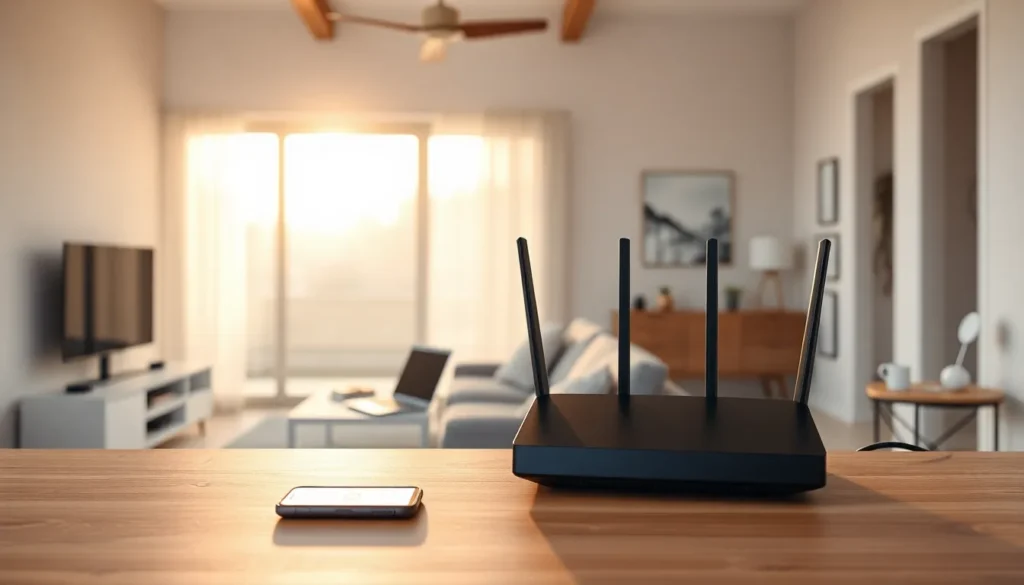
Effective home networking strategies can transform a sluggish, frustrating internet experience into a seamless one. Whether someone works from home, streams movies, or runs a smart home system, a strong network setup matters more than ever. The average household now connects over 20 devices to WiFi, and that number keeps growing. This guide breaks down practical steps to build a fast, reliable home network. Readers will learn how to assess their needs, select the right equipment, optimize placement, secure their connection, and expand coverage where needed.
Table of Contents
ToggleKey Takeaways
- Start by assessing your home network needs—count all connected devices and identify high-bandwidth activities like 4K streaming and video conferencing.
- Invest in a WiFi 6 router for better multi-device performance and choose mid-range equipment ($100-200) for reliable, long-term value.
- Place your router in a central, elevated location away from thick walls, large appliances, and electronics that cause interference.
- Secure your network with WPA3 encryption, strong unique passwords, and regular firmware updates to protect against intruders.
- For homes over 2,000 square feet, mesh WiFi systems provide seamless coverage, while extenders work for smaller spaces with minor dead spots.
- Effective home networking strategies combine proper equipment selection, optimal placement, strong security, and scalable coverage solutions.
Assess Your Home Network Needs
Before buying new equipment or moving routers around, homeowners should understand their actual network demands. This step saves money and prevents frustration down the road.
Count Connected Devices
Most people underestimate how many devices use their network. Smartphones, laptops, tablets, smart TVs, gaming consoles, security cameras, thermostats, and even refrigerators compete for bandwidth. A household with 10 devices has different needs than one with 30.
Identify High-Bandwidth Activities
Streaming 4K video, video conferencing, and online gaming require significant bandwidth. If multiple family members do these activities at the same time, the network needs to handle that load. Standard web browsing and email use far less bandwidth.
Measure Current Internet Speed
Free speed tests reveal whether the current setup delivers what the internet plan promises. If the plan offers 300 Mbps but the test shows 50 Mbps, something in the home networking setup needs attention. The router, its placement, or interference could be the culprit.
Consider Future Growth
Smart home devices continue to multiply. A network that works today might struggle in two years. Planning for 25-50% more devices than currently connected provides breathing room.
Choose the Right Router and Equipment
The router serves as the backbone of any home network. Choosing the right one makes a significant difference in speed and reliability.
WiFi Standards Matter
WiFi 6 (802.11ax) routers handle multiple devices better than older WiFi 5 models. They deliver faster speeds, especially in crowded networks. WiFi 6E adds a 6 GHz band for even less interference. For most households, a WiFi 6 router provides excellent performance at a reasonable price.
Speed Ratings Explained
Router boxes show numbers like “AX5400” or “AC2600.” These indicate maximum theoretical speeds across all bands combined. Real-world speeds are lower. For a 500 Mbps internet plan, an AX3000 or higher router works well.
Modem Considerations
If the internet provider requires a separate modem, ensure it matches the internet speed tier. An outdated modem bottlenecks even the best router. DOCSIS 3.1 modems support gigabit cable connections.
Quality Over Price
A $50 router might seem appealing, but mid-range options ($100-200) typically offer better range, stronger processors, and longer support. This investment pays off through fewer dropped connections and better home networking performance overall.
Optimize Router Placement for Maximum Coverage
Even an excellent router performs poorly in the wrong spot. Placement dramatically affects signal strength throughout the home.
Central Location Works Best
Routers broadcast signals in all directions. Placing one in a corner wastes half the coverage area outside the house. A central location, often a living room or hallway, distributes the signal more evenly.
Elevation Helps
Radio signals travel outward and slightly downward. Mounting a router on a shelf or high on a wall (about 5-6 feet up) improves coverage, especially to devices on lower floors.
Avoid These Obstacles
- Thick walls and floors: Concrete, brick, and metal block signals significantly
- Large appliances: Refrigerators and HVAC systems interfere with WiFi
- Microwaves: They operate on frequencies that clash with 2.4 GHz WiFi
- Fish tanks: Water absorbs radio signals
Keep Distance From Electronics
Cordless phones, baby monitors, and Bluetooth devices can cause interference. Separating the router from these items by several feet reduces signal degradation.
Test Different Spots
Try moving the router to two or three locations and test speeds in various rooms. This simple experiment often reveals a surprisingly better spot.
Strengthen Network Security
A fast network means nothing if it’s vulnerable to intruders. Strong security protects personal data and keeps the network running smoothly.
Use WPA3 Encryption
WPA3 provides the strongest current protection for home networks. If the router only supports WPA2, that’s still acceptable, but avoid older WEP encryption entirely. It’s easily cracked.
Create Strong Passwords
The default password printed on the router is often weak or widely known. Change it to something unique: at least 12 characters mixing letters, numbers, and symbols. “Password123” won’t cut it.
Set Up a Guest Network
Visitors don’t need access to personal computers or smart home devices. A separate guest network isolates their devices from the main network. Most modern routers include this feature.
Update Firmware Regularly
Router manufacturers release updates that fix security vulnerabilities. Check for updates every few months, or enable automatic updates if available. Outdated firmware leaves networks exposed.
Disable Remote Management
Unless there’s a specific need to access the router from outside the home, turn off remote management. This closes a potential entry point for attackers.
Good home networking strategies include security from the start, not as an afterthought.
Expand Coverage With Mesh Systems or Extenders
Large homes or those with thick walls often need more than a single router. Two main options exist for expanding coverage.
Mesh WiFi Systems
Mesh systems use multiple access points that work together as one network. Devices automatically connect to the strongest node as users move through the house. This creates seamless coverage without manual switching.
Popular mesh systems include Google Nest WiFi, Eero, and TP-Link Deco. These typically cover 3,000-5,000 square feet with a two or three-unit setup. They cost more than extenders but deliver better performance.
WiFi Extenders
Extenders rebroadcast the existing signal to reach further. They’re cheaper than mesh systems but create a separate network (often named “NetworkName_EXT”). Devices don’t switch automatically between the main router and extender.
Extenders also cut speeds in half since they receive and transmit on the same frequency. Dual-band extenders reduce this problem but don’t eliminate it.
Which Option Fits Best?
For homes over 2,000 square feet or with multiple floors, mesh systems provide the best experience. Smaller homes with just one or two dead spots might find an extender sufficient.
Ethernet Backhaul
If running ethernet cables is possible, connecting mesh nodes or extenders via cable rather than wirelessly improves performance significantly. This approach eliminates the speed loss from wireless repeating.
Strong home networking strategies adapt to the specific challenges of each space.