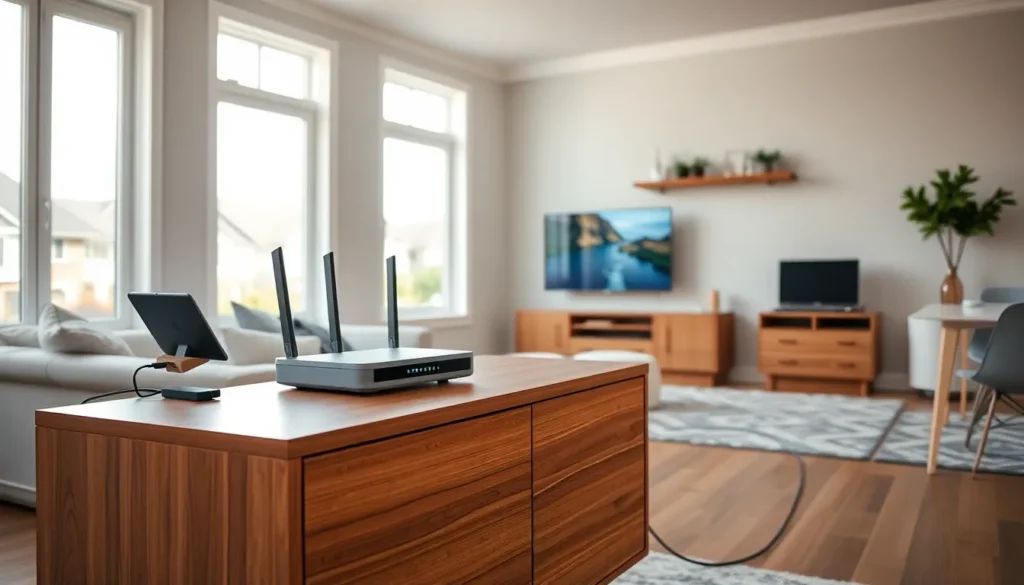
Home networking ideas can transform a sluggish, unreliable connection into a fast, seamless experience. Whether someone streams 4K movies, works from home, or connects dozens of smart devices, a well-designed network makes all the difference. The average U.S. household now has over 20 connected devices, and that number keeps growing. Poor Wi-Fi coverage, slow speeds, and dropped connections frustrate millions of users daily.
This guide covers practical home networking ideas that address these common problems. Readers will learn how to select the right router, extend coverage to every corner of their home, leverage wired connections for demanding tasks, and secure their network against threats. Each section offers actionable steps that anyone can carry out, regardless of technical skill level.
Table of Contents
ToggleKey Takeaways
- Upgrade to a Wi-Fi 6 or Wi-Fi 6E router to efficiently handle 50+ devices and reduce network congestion in your home.
- Mesh Wi-Fi systems provide the best whole-home coverage, eliminating dead zones without speed drops as you move between rooms.
- Use wired Ethernet connections for stationary devices like gaming consoles and smart TVs to maximize speed and free up Wi-Fi bandwidth.
- Create a separate network for smart home devices to protect sensitive data on your computers and phones from potential security breaches.
- Place your router in a central, elevated location away from microwaves and thick walls to dramatically improve signal strength.
- Keep router firmware updated and use WPA3 encryption to defend your home network against hackers and security vulnerabilities.
Choosing the Right Router for Your Home
The router serves as the foundation of any home network. A quality router determines speed, range, and how many devices can connect without lag. Many people stick with the basic router their internet provider supplies, but upgrading often delivers dramatic improvements.
Consider Wi-Fi 6 or Wi-Fi 6E routers. These newer standards handle multiple devices more efficiently than older Wi-Fi 5 models. A Wi-Fi 6 router can manage 50+ devices without slowing down, perfect for homes packed with phones, tablets, smart TVs, and IoT gadgets. Wi-Fi 6E adds a third frequency band (6GHz), which reduces congestion even further.
Match the router to your internet plan. There’s no point buying a router rated for 6,000 Mbps if the internet plan caps out at 300 Mbps. But, a faster router still helps with internal network traffic, like streaming from a local media server or transferring files between devices.
Look for MU-MIMO and OFDMA technology. These features allow routers to communicate with multiple devices simultaneously rather than one at a time. The result? Less waiting, faster response times, and smoother video calls.
Placement matters as much as specs. Even the best router struggles when stuffed in a closet or hidden behind furniture. Central, elevated locations work best. Keep routers away from microwaves, cordless phones, and thick walls that block signals.
For most households, a mid-range router priced between $100 and $200 delivers excellent performance. Budget options under $75 work fine for small apartments with basic needs, while power users might invest $300+ in a high-end model with advanced features.
Extending Wi-Fi Coverage Throughout Your Space
Dead zones kill productivity and patience. A strong signal in the living room means nothing if the home office upstairs barely connects. Several home networking ideas address this coverage problem.
Mesh Wi-Fi systems offer the most elegant solution. These systems use multiple units placed around the home, creating a single seamless network. Users move from room to room without disconnection or speed drops. Popular options like Google Nest, Eero, and TP-Link Deco cover homes up to 6,000 square feet with three units.
Wi-Fi extenders provide a budget-friendly alternative. They amplify the existing signal from the main router. But, extenders typically cut bandwidth in half because they use the same channel to receive and retransmit data. They work best for adding coverage to a single problem area rather than whole-home improvement.
Powerline adapters turn electrical wiring into a network pathway. One adapter plugs into an outlet near the router: another plugs in wherever coverage is needed. Some models include Wi-Fi broadcasting capabilities. Performance depends heavily on the home’s electrical wiring age and quality.
MoCA adapters use coaxial cable (the same wiring used for cable TV) to extend the network. These often outperform powerline adapters, delivering speeds up to 2.5 Gbps with low latency. Homes with existing coax wiring can benefit significantly from this approach.
When choosing between these options, mesh systems win for whole-home coverage. Extenders and adapters work better for targeted fixes in specific rooms.
Wired Connections for Maximum Performance
Wi-Fi is convenient, but wired connections deliver superior speed and reliability. Serious gamers, video editors, and remote workers benefit from Ethernet cables that eliminate wireless interference entirely.
Ethernet cables come in different categories. Cat5e handles speeds up to 1 Gbps over 100 meters, sufficient for most home users. Cat6 supports 10 Gbps over shorter distances and offers better shielding against interference. Cat6a and Cat7 provide even higher performance for future-proofing.
Running cables through walls gives homes a clean, professional look. This project requires some DIY skills: drilling holes, fishing cables through walls, and installing wall plates. Many homeowners hire electricians for this work, typically costing $150-$300 per drop.
A network switch expands available Ethernet ports when the router doesn’t have enough. An 8-port gigabit switch costs around $20-$40 and allows multiple wired devices to connect in one location, ideal for home offices or entertainment centers.
Consider Ethernet for stationary devices. Desktop computers, gaming consoles, smart TVs, and streaming boxes don’t move. Connecting them via Ethernet frees up Wi-Fi bandwidth for phones, tablets, and laptops that actually need wireless connectivity.
Here’s a practical home networking idea: create a hybrid setup. Use wired connections for bandwidth-heavy, stationary devices and reserve Wi-Fi for mobile devices. This approach maximizes both convenience and performance.
Smart Home Integration and Network Security
Smart home devices add convenience but also increase network demands and security risks. Cameras, thermostats, doorbells, speakers, and appliances all compete for bandwidth and create potential entry points for hackers.
Segment the network by creating a separate Wi-Fi network for IoT devices. Most modern routers support guest networks or VLANs (Virtual Local Area Networks). This separation prevents a compromised smart device from accessing computers or phones containing sensitive data.
Change default passwords immediately. Many smart devices ship with generic credentials like “admin/admin.” Hackers know these defaults and actively scan for vulnerable devices. Strong, unique passwords for each device and the router itself form the first line of defense.
Keep firmware updated. Router and device manufacturers regularly release security patches. Enable automatic updates when available, or check manually every few months. Outdated firmware leaves known vulnerabilities exposed.
Use WPA3 encryption if the router supports it. WPA3 provides stronger protection than the older WPA2 standard, making it harder for attackers to crack passwords through brute-force attempts.
Consider a dedicated smart home hub. Hubs like Samsung SmartThings or Hubitat consolidate device communication, often using Zigbee or Z-Wave protocols instead of Wi-Fi. This reduces Wi-Fi congestion and can improve security by limiting devices’ direct internet access.
For households with many smart devices, these home networking ideas protect privacy while ensuring everything runs smoothly.