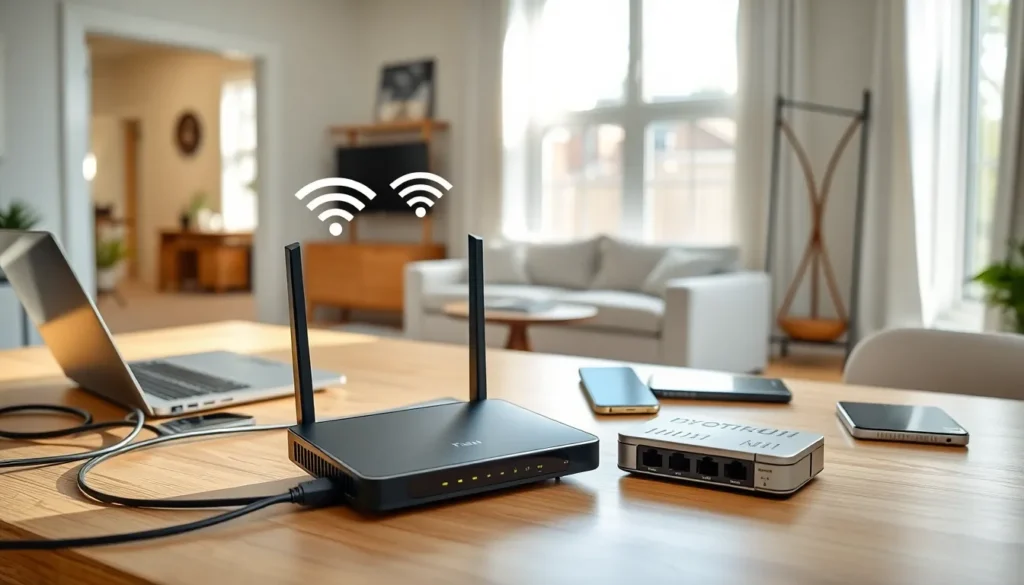
A solid home networking guide can save hours of frustration and transform an unreliable internet connection into something that actually works. Most households now run multiple devices, smartphones, laptops, smart TVs, gaming consoles, and an ever-growing list of connected gadgets. Without a proper home network setup, these devices compete for bandwidth and create dead zones throughout the house. This guide breaks down everything needed to build a reliable home network from scratch. It covers the basic concepts, essential equipment, step-by-step setup instructions, and practical tips for better performance. Whether someone is dealing with buffering videos or dropped video calls, the right home networking approach makes all the difference.
Table of Contents
ToggleKey Takeaways
- A reliable home network starts with understanding the basic flow: ISP → modem → router → devices.
- Position your router centrally and elevated to minimize dead zones and signal interference.
- Use Ethernet cables for devices that need consistent performance, like gaming consoles and desktop computers.
- Enable WPA3 (or at least WPA2) encryption and create a strong password to secure your home networking setup.
- Consider a mesh Wi-Fi system for larger homes to eliminate dead zones and provide seamless coverage.
- Upgrade to a Wi-Fi 6 router if your current equipment is over five years old to handle modern device demands.
Understanding Home Network Basics
A home network connects all devices in a household so they can share an internet connection and communicate with each other. The network starts with an internet service provider (ISP) delivering connectivity to the home through a modem. The modem converts the ISP’s signal into data that local devices can use.
A router then takes that internet connection and distributes it throughout the home. Most modern routers broadcast both wired and wireless signals. Wired connections use Ethernet cables and deliver the most stable performance. Wireless connections (Wi-Fi) offer convenience but can experience interference from walls, appliances, and distance.
Every device on a home network receives an IP address, a unique identifier that allows data to reach the correct destination. The router manages these addresses automatically through a system called DHCP. Understanding this basic flow, ISP to modem to router to devices, forms the foundation of any successful home networking setup.
Two main frequency bands exist for Wi-Fi: 2.4 GHz and 5 GHz. The 2.4 GHz band travels farther and penetrates walls better, but it’s slower and more crowded. The 5 GHz band offers faster speeds over shorter distances. Many routers now include both bands, and newer Wi-Fi 6 and Wi-Fi 7 standards provide even better performance for multiple devices.
Essential Equipment You Need
Building a reliable home network requires the right equipment. Here’s what most households need:
Modem
The modem connects to the ISP and brings internet into the home. Some ISPs provide a modem, while others allow customers to purchase their own. Owning a modem can save monthly rental fees and often delivers better performance.
Router
The router distributes the internet connection to all devices. Look for a router that supports the latest Wi-Fi standards (Wi-Fi 6 or Wi-Fi 6E) for better speed and device handling. Dual-band or tri-band routers handle multiple devices more efficiently.
Modem-Router Combo
Some devices combine both functions into one unit. These work fine for smaller homes but offer less flexibility than separate devices.
Ethernet Cables
Wired connections beat wireless for speed and reliability. Cat 6 or Cat 6a cables support speeds up to 10 Gbps and work well for home networking needs. Connect gaming consoles, desktop computers, and smart TVs directly when possible.
Network Switch
If the router doesn’t have enough Ethernet ports, a network switch adds more. This is useful for home offices or entertainment centers with multiple wired devices.
Mesh Wi-Fi System or Range Extenders
Larger homes often have Wi-Fi dead zones. Mesh systems use multiple units to create seamless coverage throughout the house. Range extenders are cheaper but can reduce overall speed. For serious home networking, mesh systems deliver better results.
Setting Up Your Home Network Step by Step
Follow these steps to set up a home network that works reliably:
Step 1: Position the Router Centrally
Place the router in a central location, elevated off the floor if possible. Avoid closets, corners, and areas near microwaves or cordless phones. These locations create interference and weaken the signal.
Step 2: Connect the Modem
Plug the modem into the ISP’s connection point (usually a coaxial cable or phone line). Connect the modem to a power source and wait for the status lights to stabilize.
Step 3: Connect the Router to the Modem
Use an Ethernet cable to connect the modem’s output port to the router’s WAN or Internet port. Power on the router and wait for it to boot completely.
Step 4: Access the Router’s Admin Panel
Open a web browser and enter the router’s IP address (typically 192.168.0.1 or 192.168.1.1). Log in with the default credentials found on the router or in its manual.
Step 5: Configure Network Settings
Change the default network name (SSID) to something recognizable. Create a strong password using a mix of letters, numbers, and symbols. Enable WPA3 encryption if available, WPA2 is the minimum acceptable security for any home networking setup.
Step 6: Connect Your Devices
Search for the new network name on each device and enter the password. Prioritize wired connections for devices that need consistent performance.
Step 7: Update Firmware
Check for router firmware updates in the admin panel. Updates fix security issues and improve performance.
Tips for Optimizing Network Performance
A properly configured home network still benefits from ongoing optimization. These tips help squeeze better performance from existing equipment.
Use Quality of Service (QoS) Settings
QoS lets the router prioritize certain types of traffic. Video calls and gaming benefit from higher priority than file downloads. Most router admin panels include QoS options under advanced settings.
Separate the Bands
Create different network names for 2.4 GHz and 5 GHz bands. This allows manual control over which devices connect to each frequency. Put IoT devices on 2.4 GHz and laptops or phones on 5 GHz.
Reduce Interference
Other networks can crowd the same Wi-Fi channels. Use a Wi-Fi analyzer app to find less congested channels, then change the router’s channel settings accordingly.
Restart Regularly
Restarting the router once a month clears memory and refreshes connections. Some routers allow scheduled reboots through the admin panel.
Upgrade When Necessary
Older routers struggle with modern demands. If the current router is more than five years old, upgrading to a Wi-Fi 6 model can dramatically improve home networking performance.
Secure the Network
Weak security lets unauthorized users steal bandwidth. Beyond strong passwords, disable WPS (Wi-Fi Protected Setup) and consider hiding the network name from public view. Check connected devices regularly and remove any unknown entries.