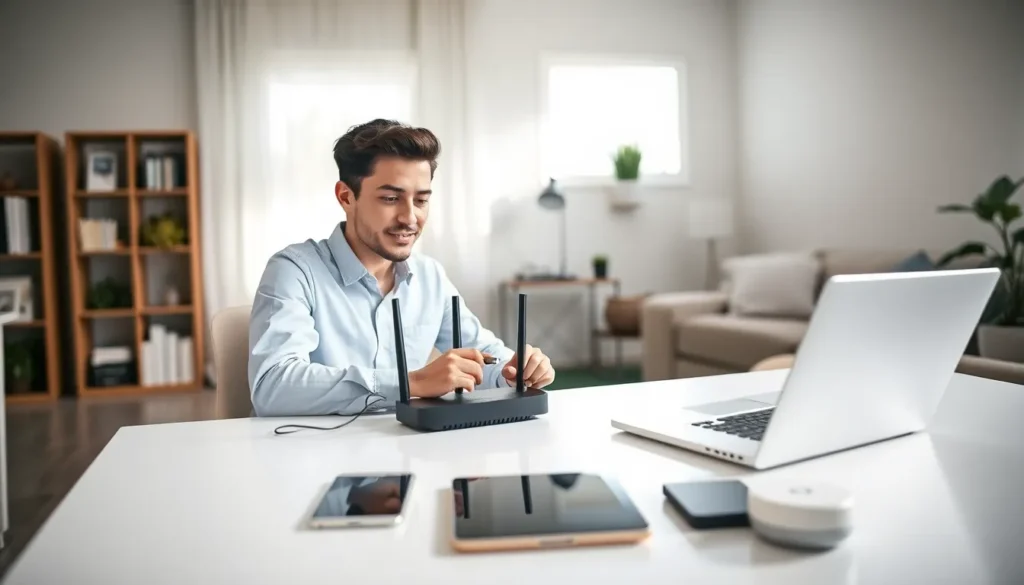
Home networking for beginners doesn’t have to feel overwhelming. A home network connects devices like computers, phones, smart TVs, and gaming consoles so they can share an internet connection and communicate with each other. Whether someone wants to stream movies, work from home, or set up smart home devices, a reliable home network makes it all possible.
This guide breaks down the basics of home networking in plain language. Readers will learn what equipment they need, how to set everything up, and how to keep their network safe from intruders. By the end, even complete beginners will have the confidence to build a functional home network from scratch.
Table of Contents
ToggleKey Takeaways
- Home networking for beginners starts with understanding that a modem connects to your ISP while a router distributes internet to all your devices.
- Position your router in a central, elevated location away from walls and large appliances to maximize Wi-Fi coverage.
- Always change default router credentials and use WPA3 (or WPA2) encryption to protect your home network from hackers.
- Create a separate guest network for visitors and smart home devices to keep your personal files and data secure.
- Most beginners can set up a functional home network in about 30 minutes with just a modem, router, and ethernet cable.
What Is a Home Network and Why Do You Need One
A home network is a system that connects multiple devices within a household to share resources and internet access. Think of it as a digital bridge that lets a laptop, smartphone, tablet, smart TV, and printer all talk to each other, and to the internet.
Most homes already have some form of home network, even if the residents don’t realize it. That Wi-Fi router from the internet service provider? It creates a basic home network the moment devices connect to it.
Why Home Networking Matters
The average American household now has over 20 connected devices. Without a proper home network, managing all those gadgets becomes a headache. Here’s why home networking for beginners is worth understanding:
- Internet sharing: One internet connection serves every device in the house
- File sharing: Transfer photos, documents, and media between computers without USB drives
- Printer access: Print from any device without plugging in cables
- Smart home control: Manage thermostats, lights, cameras, and doorbells from one app
- Entertainment streaming: Watch content on any TV or device throughout the home
A well-designed home network also improves speed and reliability. Instead of devices fighting for bandwidth, traffic flows smoothly to where it’s needed.
Essential Equipment for Your Home Network
Building a home network requires a few key pieces of hardware. The good news? Most beginners only need two or three items to get started.
The Modem
A modem connects the home to the internet service provider (ISP). It translates the signal from the cable, fiber, or DSL line into data that devices can use. Many ISPs provide a modem as part of their service, though purchasing one outright often saves money over time.
The Router
The router is the heart of any home network. It takes the internet connection from the modem and distributes it to multiple devices, either through Wi-Fi or ethernet cables. Modern routers support both 2.4 GHz and 5 GHz frequencies:
- 2.4 GHz: Better range, slower speeds, works through walls
- 5 GHz: Shorter range, faster speeds, ideal for streaming and gaming
Some ISPs offer a modem-router combo unit. These work fine for basic home networking, but separate devices often deliver better performance.
Additional Equipment
Depending on the home’s size and needs, beginners might also consider:
- Ethernet cables: Provide faster, more stable connections than Wi-Fi for desktop computers and gaming consoles
- Network switches: Add more wired connection ports when the router runs out
- Wi-Fi extenders or mesh systems: Eliminate dead zones in larger homes
For most apartments and small houses, a quality router handles home networking duties without extra gear.
How to Set Up Your Home Network Step by Step
Setting up a home network takes about 30 minutes for most beginners. Follow these steps to get connected.
Step 1: Position the Equipment
Place the modem near the cable or phone outlet where the internet enters the home. Position the router in a central location, elevated off the floor if possible. Walls, large appliances, and metal objects can weaken Wi-Fi signals, so keep the router away from these obstacles.
Step 2: Connect the Hardware
- Plug the modem into the wall outlet and connect it to the ISP’s line
- Wait for the modem’s lights to stabilize (usually 1-2 minutes)
- Connect the router to the modem using an ethernet cable
- Power on the router and wait for it to boot up
Step 3: Configure the Router
Access the router’s settings through a web browser or mobile app. The default login information is usually printed on the router itself. During setup:
- Create a unique network name (SSID) that’s easy to remember
- Set a strong password with at least 12 characters
- Choose WPA3 security if available, or WPA2 as a backup
- Update the router’s firmware to the latest version
Step 4: Connect Devices
On each device, open Wi-Fi settings and select the new network name. Enter the password, and the device joins the home network. For wired connections, simply plug an ethernet cable from the device into the router.
Home networking for beginners becomes much easier once the initial setup is complete. Most routers remember settings and reconnect devices automatically after power outages.
Tips for Securing Your Home Network
An unsecured home network invites trouble. Hackers can steal personal data, hijack bandwidth, or use the connection for illegal activities. These security measures protect the network and everyone on it.
Change Default Credentials
Routers ship with generic usernames and passwords that hackers know by heart. Change the admin login immediately. Use a unique password that doesn’t appear elsewhere.
Use Strong Encryption
WPA3 encryption offers the best protection for home networking. If the router doesn’t support WPA3, WPA2 is acceptable. Never use WEP, it’s outdated and easily cracked.
Create a Guest Network
Most modern routers allow a separate guest network for visitors. This keeps friends and family connected without giving them access to personal devices or files. It’s also useful for smart home gadgets that don’t need full network privileges.
Keep Firmware Updated
Router manufacturers release updates that patch security holes. Check for firmware updates every few months, or enable automatic updates if the router supports them.
Disable Remote Management
Unless there’s a specific need to access the router from outside the home, turn off remote management features. This closes a potential entry point for attackers.
Monitor Connected Devices
Periodically review the list of devices on the network. If an unfamiliar device appears, it might indicate unauthorized access. Most router apps show connected devices and allow blocking unknown ones.
Home networking security doesn’t require technical expertise. These basic steps stop the majority of threats.