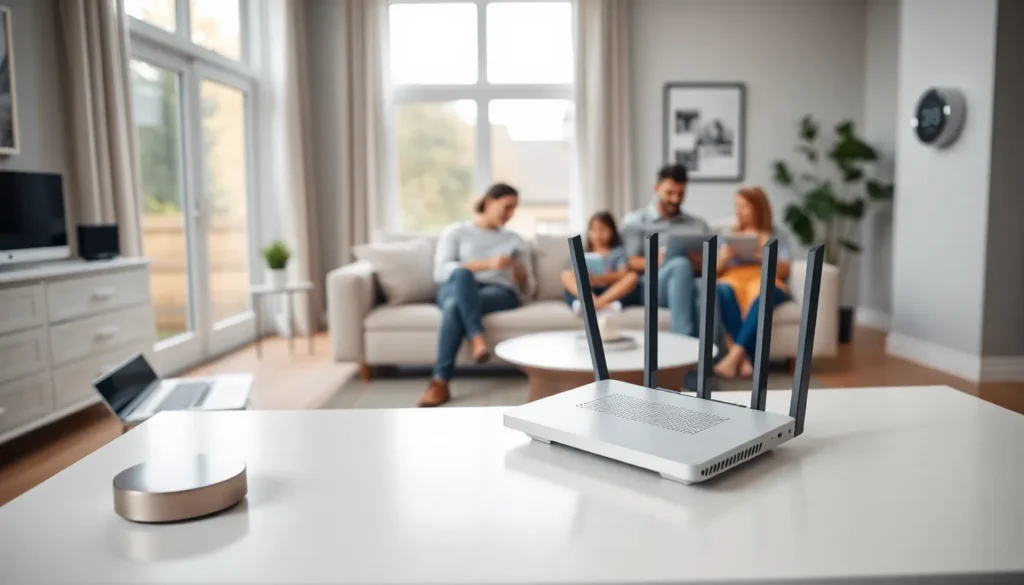
Home networking examples show how different households connect their devices for internet access, streaming, gaming, and work. A well-designed home network keeps everything running smoothly, from laptops and smartphones to smart thermostats and security cameras. But not every household needs the same setup. A family streaming 4K movies has different requirements than a remote worker handling video calls all day.
This guide breaks down practical home networking examples for various needs. Whether someone wants a simple setup for basic browsing or a high-performance system for gaming, these configurations provide a clear starting point. Each example includes the key components and explains why they matter.
Table of Contents
ToggleKey Takeaways
- Home networking examples range from basic single-router setups for light browsing to advanced mesh systems supporting 30+ smart devices.
- Position your router centrally and away from walls to maximize WiFi coverage throughout your home.
- Remote workers should use wired Ethernet connections for video calls, as WiFi instability can disrupt important meetings.
- Gamers and 4K streaming households benefit most from gigabit internet and WiFi 6 routers that reduce latency and congestion.
- Creating a separate guest network for smart home devices adds a critical layer of security to your home network.
- Regular router maintenance—including firmware updates, strong passwords, and monthly restarts—keeps any home networking setup running smoothly.
Basic Home Network Setup
A basic home network setup works well for households with light internet usage. This includes web browsing, email, social media, and occasional streaming. Most families start here before expanding their network.
Key Components:
- Modem (provided by ISP or purchased separately)
- Wireless router
- Ethernet cables for stationary devices
The modem connects to the internet service provider. The router creates the wireless network that devices use. For a basic home networking example, a single router placed centrally in the home covers most small apartments or single-story houses.
Users should position the router away from walls and metal objects. A spot near the center of the living space gives the best coverage. Most modern routers support both 2.4GHz and 5GHz frequencies. The 2.4GHz band reaches farther but offers slower speeds. The 5GHz band delivers faster speeds over shorter distances.
For a household with three to five devices, a basic dual-band router handles traffic without issues. Budget-friendly options from brands like TP-Link, Netgear, and ASUS start around $50. These home networking setups serve casual users perfectly.
Smart Home Network Configuration
Smart home devices create unique demands on a network. Thermostats, doorbells, light bulbs, voice assistants, and security cameras all compete for bandwidth. A smart home network configuration accounts for these connected devices.
Common Smart Home Devices:
- Smart speakers (Amazon Echo, Google Nest)
- Video doorbells and security cameras
- Smart plugs and light switches
- Robot vacuums
- Smart locks
This home networking example requires a router that handles many simultaneous connections. Look for routers advertising support for 25+ devices. Mesh network systems work especially well here. Brands like Eero, Google Nest WiFi, and TP-Link Deco place multiple access points throughout the home.
Smart home networks benefit from creating a separate guest network for IoT devices. This keeps smart gadgets isolated from computers and phones containing sensitive data. If a security camera gets compromised, hackers can’t access the main network.
Quality of Service (QoS) settings help prioritize traffic. Users can set their security cameras to maintain consistent upload speeds. This prevents buffering during important moments. A home network with 15 to 30 smart devices runs best on a tri-band router or mesh system costing $150 to $300.
Home Office Network Setup
Remote workers need reliable connections for video conferencing, file transfers, and cloud applications. A home office network setup prioritizes stability and speed over raw device capacity.
Essential Components:
- High-speed internet plan (100Mbps minimum, 300Mbps+ recommended)
- Business-grade or high-performance router
- Wired Ethernet connection to the workstation
- Uninterruptible power supply (UPS)
This home networking example puts the work computer on a wired connection. Ethernet cables provide consistent speeds without interference. WiFi works for casual browsing, but video calls suffer from wireless instability.
A dedicated workspace should sit close to the router or use a long Ethernet cable. Powerline adapters offer another option, they send internet signals through electrical wiring to distant rooms.
Upload speed matters as much as download speed for home office users. Video calls send data constantly. Most internet plans offer asymmetric speeds with slower uploads. Workers handling large file uploads should check their plan details.
A UPS protects against power interruptions during important meetings. Even a brief outage kills a Zoom call. Basic UPS units cost $50 to $100 and provide 15 to 30 minutes of backup power.
Home networking setups for offices sometimes include a VPN router. This encrypts all traffic automatically, useful for accessing company resources securely.
Entertainment-Focused Network Design
Gamers and streaming enthusiasts push their networks hard. 4K video streaming, online gaming, and large downloads require serious bandwidth. An entertainment-focused network design handles these demands.
Typical Use Cases:
- 4K or 8K video streaming on multiple TVs
- Online gaming with low latency requirements
- Downloading large game files (50GB+)
- Music streaming throughout the home
This home networking example benefits from gigabit internet when available. A family streaming on three TVs while someone games online needs substantial bandwidth. 500Mbps to 1Gbps plans handle these households comfortably.
Gaming routers feature specialized firmware that reduces latency. Brands like ASUS ROG, Netgear Nighthawk, and TP-Link Archer focus on gaming performance. These routers prioritize gaming traffic automatically.
Wired connections remain the gold standard for serious gamers. Even the best WiFi introduces some latency. Competitive players notice the difference. Running Ethernet to a gaming console or PC eliminates wireless inconsistency.
For home networking in entertainment setups, consider WiFi 6 (802.11ax) or WiFi 6E routers. These newer standards handle multiple high-bandwidth streams better than older technology. They reduce congestion when the whole family streams simultaneously.
Media servers add another dimension. A NAS (Network Attached Storage) device stores movies and music locally. Family members stream content without using internet bandwidth.
Tips for Optimizing Your Home Network
Every home networking setup benefits from optimization. Small changes improve speed and reliability without buying new equipment.
Router Placement:
Central locations work best. Avoid closets, basements, and corners. Elevate the router off the floor. Keep it away from microwaves and cordless phones that cause interference.
Update Firmware Regularly:
Router manufacturers release security patches and performance improvements. Check for updates monthly. Many newer routers update automatically.
Use Strong Passwords:
Weak WiFi passwords invite neighbors to share the connection. Use WPA3 encryption when available. WPA2 remains acceptable for older devices.
Reduce Interference:
Neighboring networks crowd the same channels. Router apps show which channels have less traffic. Switching channels can dramatically improve home network performance.
Restart Equipment Periodically:
Routers and modems benefit from occasional restarts. Once a month clears memory issues and refreshes connections. Some routers offer scheduled restart features.
Monitor Connected Devices:
Unknown devices on a network indicate security problems. Most router apps display all connected devices. Remove anything unrecognized immediately.
Consider Network Extenders:
Dead zones plague larger homes. WiFi extenders or mesh systems eliminate weak signal areas. Mesh systems provide seamless roaming, devices switch access points automatically.
These home networking tips apply to any setup. Basic users and power users alike benefit from proper maintenance.