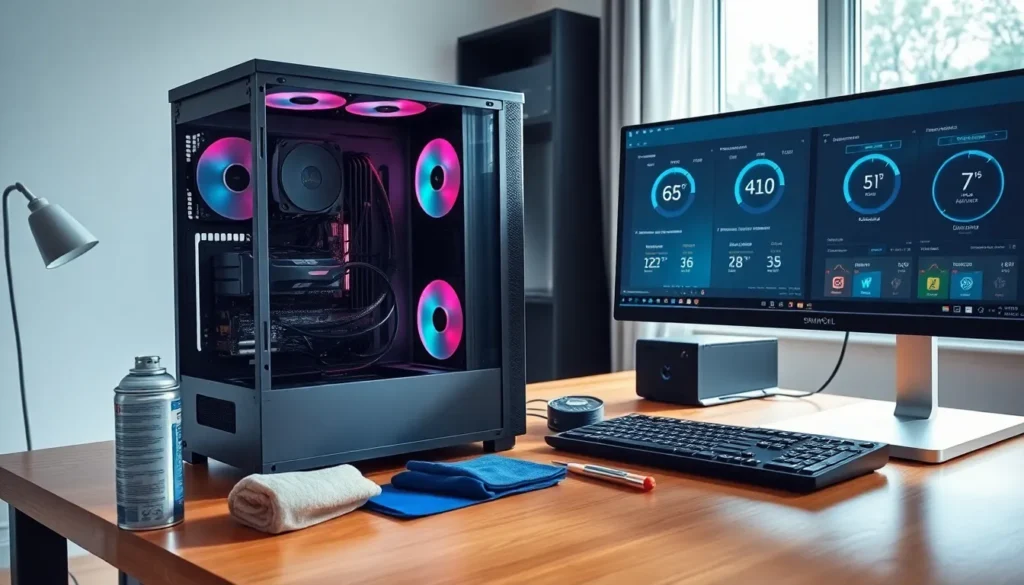
Computer performance depends heavily on hardware care. Users who follow proven hardware tips can extend the lifespan of their machines and avoid costly repairs. Dust, heat, and outdated components slow down even high-end systems over time.
This guide covers practical hardware tips that anyone can apply. From cleaning routines to strategic upgrades, these steps help computers run faster and last longer. Whether someone uses their PC for gaming, work, or everyday browsing, proper hardware maintenance makes a noticeable difference.
Table of Contents
ToggleKey Takeaways
- Clean your computer every 3-6 months using compressed air and microfiber cloths to prevent dust-related hardware failures.
- Monitor CPU temperatures and ensure proper ventilation to avoid thermal throttling and permanent component damage.
- Upgrade RAM to 16GB and switch to an SSD for the most cost-effective performance improvements.
- Practice good cable management to improve airflow, reduce dust buildup, and simplify troubleshooting.
- Follow the 3-2-1 backup rule and replace aging storage drives before they fail to protect your data.
- These hardware tips extend your computer’s lifespan while maintaining optimal speed and reliability.
Keep Your Hardware Clean and Dust-Free
Dust accumulation ranks among the top causes of hardware failure. Over time, dust clogs fans, blocks vents, and coats internal components. This buildup forces the system to work harder, which shortens the lifespan of critical parts.
Following basic hardware tips for cleaning can prevent these issues:
- Power down and unplug the computer before opening the case.
- Use compressed air to blow dust from fans, heatsinks, and vents. Hold cans upright to avoid spraying liquid.
- Wipe surfaces gently with a microfiber cloth. Avoid paper towels, which leave fibers behind.
- Clean every 3-6 months, or more frequently in dusty environments.
Laptop users should pay special attention to keyboard areas and exhaust vents. Desktop owners can remove side panels for deeper access. A clean system runs cooler, quieter, and more efficiently.
Pet owners and those in dusty rooms may need to clean more often. Air purifiers near workstations also reduce dust intake. These simple hardware tips cost nothing but deliver real performance benefits.
Manage Heat and Improve Ventilation
Heat damages computer components faster than almost anything else. CPUs and GPUs throttle their performance when temperatures rise too high. Prolonged heat exposure can cause permanent damage to motherboards and memory modules.
Effective hardware tips for thermal management include:
- Position the computer properly. Keep it away from walls, curtains, and other objects that block airflow. Desktop towers need at least 4-6 inches of clearance on all sides.
- Check fan operation regularly. Fans that spin slowly or make grinding noises need replacement. Most fans cost under $20 and install in minutes.
- Consider aftermarket cooling. Tower coolers outperform stock CPU coolers significantly. Liquid cooling systems offer even better results for high-performance builds.
- Monitor temperatures actively. Free software like HWMonitor or Core Temp displays real-time readings. CPUs should stay below 80°C under load.
Laptop users benefit from cooling pads with built-in fans. These accessories lift the device and push cool air toward intake vents. Some users also repaste their CPU and GPU with fresh thermal compound every few years.
Room temperature matters too. Air conditioning during summer months helps keep hardware within safe operating ranges. These hardware tips protect investments and maintain consistent performance.
Upgrade Key Components for Better Performance
Strategic upgrades deliver more value than buying entirely new systems. Smart hardware tips focus on components that create bottlenecks.
RAM Upgrades
Insufficient RAM causes slowdowns during multitasking. Modern systems need at least 16GB for smooth operation. Upgrading from 8GB to 16GB often costs less than $50 and takes about five minutes.
Storage Upgrades
Switching from a traditional hard drive to an SSD produces dramatic speed improvements. Boot times drop from minutes to seconds. Application loading speeds increase substantially. NVMe SSDs offer even faster data transfer rates than SATA SSDs.
Graphics Card Upgrades
Gamers and creative professionals benefit most from GPU upgrades. A newer graphics card improves frame rates, enables higher resolutions, and speeds up video rendering. But, users should verify their power supply can handle the new card’s requirements.
CPU Considerations
CPU upgrades require careful planning. The motherboard must support the new processor. Sometimes upgrading the CPU means replacing the motherboard too, which increases costs significantly.
These hardware tips help users prioritize spending. RAM and SSD upgrades typically offer the best performance-per-dollar ratio for most users.
Practice Proper Cable Management
Messy cables do more than look bad. They block airflow, trap dust, and make troubleshooting difficult. Good cable management counts among the most overlooked hardware tips.
Inside the case:
- Route cables behind the motherboard tray when possible. Most modern cases include cutouts for this purpose.
- Use zip ties or velcro straps to bundle cables together. Velcro allows easier adjustments later.
- Connect only necessary cables. Remove unused SATA or Molex connectors from the case interior.
Outside the case:
- Use cable clips or raceways to organize monitor, keyboard, and peripheral cables.
- Label cables at both ends. This saves time during upgrades or troubleshooting.
- Check connections periodically. Loose cables cause intermittent issues that confuse diagnostics.
Modular power supplies simplify internal cable management. Users connect only the cables they need, reducing clutter substantially. These hardware tips improve both aesthetics and system health.
Maintain and Monitor Your Storage Drives
Storage drives hold irreplaceable data. Proper maintenance prevents data loss and maintains system responsiveness. These hardware tips apply to both SSDs and traditional hard drives.
For SSDs:
- Enable TRIM to maintain write performance over time. Most operating systems enable this automatically.
- Avoid filling SSDs beyond 75% capacity. Performance decreases as drives approach full capacity.
- Update firmware when manufacturers release new versions. Firmware updates often fix bugs and improve reliability.
For Hard Drives:
- Run defragmentation periodically. Fragmented files slow down read and write operations.
- Listen for unusual clicking or grinding sounds. These noises often indicate impending failure.
- Check SMART data using free tools like CrystalDiskInfo. SMART attributes reveal drive health status.
For All Drives:
- Back up important files regularly. Follow the 3-2-1 rule: three copies, two different media types, one offsite.
- Replace aging drives proactively. Most drives last 3-5 years under normal use. Replacing them before failure prevents data loss.
These hardware tips protect both performance and personal files. Storage monitoring takes minimal effort but provides significant peace of mind.