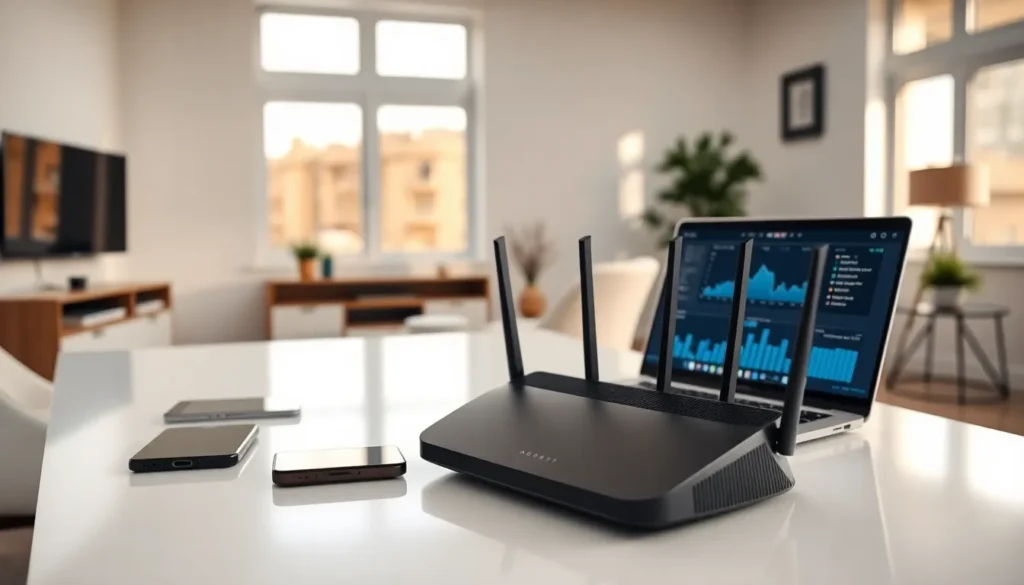
Best home networking starts with understanding what you actually need. A solid home network connects all devices, smartphones, laptops, smart TVs, and gaming consoles, without frustrating slowdowns or dead zones. Whether someone works from home, streams 4K content, or runs a smart home ecosystem, the right network setup makes everything run smoother.
This guide breaks down the essentials of home networking. Readers will learn how to assess their needs, choose the right equipment, optimize performance, and troubleshoot common problems. No technical degree required, just practical advice that works.
Table of Contents
ToggleKey Takeaways
- The best home networking setup depends on your home size, number of devices, and usage patterns—assess your needs before buying equipment.
- Wi-Fi 6 or Wi-Fi 6E routers deliver optimal performance, while mesh systems work best for larger homes or challenging layouts.
- Position your router centrally and elevated, away from interference sources like microwaves, metal objects, and thick walls.
- Use wired Ethernet connections for stationary devices like gaming consoles and smart TVs to achieve the fastest, most reliable speeds.
- Secure your network by changing default passwords, enabling WPA3 encryption, and keeping router firmware updated regularly.
- Households with heavy usage should plan for 200+ Mbps internet service and equipment capable of handling 20+ simultaneous device connections.
Understanding Your Home Network Needs
Before buying any equipment, homeowners should assess their specific requirements. The best home networking solution for a studio apartment looks very different from what a four-bedroom house needs.
Consider these factors:
- Home size and layout: Square footage matters, but so do walls, floors, and building materials. Concrete and brick block signals more than drywall.
- Number of devices: The average U.S. household now has over 20 connected devices. Count smartphones, tablets, laptops, smart TVs, gaming consoles, smart speakers, and IoT devices.
- Usage patterns: Video conferencing and 4K streaming demand more bandwidth than casual browsing. Gamers need low latency. Multiple simultaneous users multiply requirements.
- Internet speed: Home networking equipment should match or exceed the internet plan’s capabilities. A 100 Mbps plan doesn’t need a router rated for 6 Gbps.
For best home networking results, people should map out where they use devices most. The home office, living room, and bedrooms typically need strong coverage. Garages and backyards might too, depending on lifestyle.
Bandwidth requirements add up fast. A single 4K Netflix stream uses about 25 Mbps. A Zoom call takes 3-4 Mbps. Smart home devices use less individually but collectively strain older networks. Households with heavy usage should plan for 200+ Mbps service and equipment that handles it efficiently.
Essential Home Networking Equipment
The foundation of best home networking lies in choosing quality equipment. Here’s what most households need.
Modem: This device connects to the internet service provider (ISP). Some ISPs require specific modems: others allow customer-owned equipment. Buying a modem saves the monthly rental fee, typically $10-15, and often delivers better performance.
Router: The router distributes the internet connection to devices via Wi-Fi and wired connections. It’s the heart of home networking.
Ethernet cables: Wired connections provide faster speeds and lower latency than Wi-Fi. Cat6 cables handle speeds up to 10 Gbps and work well for gaming PCs, smart TVs, and home offices.
Network switch: Homes with many wired devices benefit from a switch that expands available Ethernet ports.
Routers and Mesh Systems
Traditional routers work well for smaller homes and apartments under 1,500 square feet. A single access point handles everything. Look for Wi-Fi 6 (802.11ax) support for best home networking performance. Wi-Fi 6E adds the 6 GHz band for even less interference.
Mesh systems suit larger homes or spaces with challenging layouts. They use multiple nodes that communicate with each other, creating seamless coverage throughout the house. Users move between rooms without signal drops or needing to switch networks.
Key router specifications to check:
- Wi-Fi standard (Wi-Fi 6 or 6E preferred)
- Speed ratings for each band
- Number of Ethernet ports
- Processor speed and RAM
- Quality of Service (QoS) features
- Security protocols (WPA3 support is ideal)
Budget routers cost $50-100. Mid-range options run $150-250. Premium mesh systems range from $300-600. For best home networking outcomes, spending slightly more upfront often prevents headaches later.
Tips for Optimal Network Performance
Good equipment matters, but proper setup and maintenance determine day-to-day performance. These tips help achieve the best home networking experience.
Router placement: Position the router centrally, elevated, and away from walls. Keep it away from microwaves, cordless phones, and baby monitors, these devices interfere with 2.4 GHz signals. Metal objects and aquariums also degrade signals.
Use both frequency bands: The 2.4 GHz band travels farther but offers slower speeds. The 5 GHz band is faster but covers less distance. Smart devices and distant rooms work better on 2.4 GHz. Laptops and streaming devices near the router should use 5 GHz.
Update firmware regularly: Router manufacturers release updates that fix security vulnerabilities and improve performance. Enable automatic updates or check monthly.
Change default passwords: Default credentials are public knowledge. Hackers use them to access networks. Create strong, unique passwords for both the Wi-Fi network and router admin panel.
Reduce interference: Neighboring Wi-Fi networks compete for the same channels. Use a Wi-Fi analyzer app to find less crowded channels. Most routers offer automatic channel selection, but manual adjustment sometimes works better.
Prioritize bandwidth with QoS: Quality of Service settings let users prioritize specific devices or activities. Video calls and gaming can take precedence over background downloads.
Consider wired connections: Ethernet cables eliminate wireless interference entirely. For stationary devices, gaming consoles, desktop computers, smart TVs, wired connections deliver the best home networking speeds possible.
Common Home Network Issues and Fixes
Even well-planned networks encounter problems. Here are frequent issues and their solutions.
Slow speeds in certain areas: Dead zones happen. Solutions include repositioning the router, adding a mesh node or Wi-Fi extender, or running Ethernet to that area. Powerline adapters, which use electrical wiring to transmit data, offer another option.
Intermittent disconnections: This often indicates interference, overheating, or aging equipment. Try changing the Wi-Fi channel, ensuring proper ventilation around the router, or restarting the device. Routers older than 4-5 years may need replacement.
Slow speeds even though fast internet: The bottleneck might be the router, not the ISP. Run speed tests directly connected via Ethernet to the modem. If speeds are normal there, the router needs an upgrade.
Too many devices causing slowdowns: Older routers struggle with 20+ simultaneous connections. Upgrade to a router with better processing power or a mesh system designed for high device counts.
Devices won’t connect: Restart both the router and the device. Check that the correct password is entered. Verify the device isn’t blocked in router settings. Forget the network on the device and reconnect.
Security concerns: Change default passwords immediately. Enable WPA3 encryption if available: WPA2 is the minimum acceptable standard. Disable WPS (Wi-Fi Protected Setup), which has known vulnerabilities. Consider setting up a guest network for visitors and IoT devices.
For persistent issues affecting best home networking performance, contacting the ISP or equipment manufacturer often helps. They can check for line issues or provide specific troubleshooting for that hardware.